How to Create Custom Digital Stickers for GoodNotes in 2025 (Complete Guide)
 By StickerCraft Team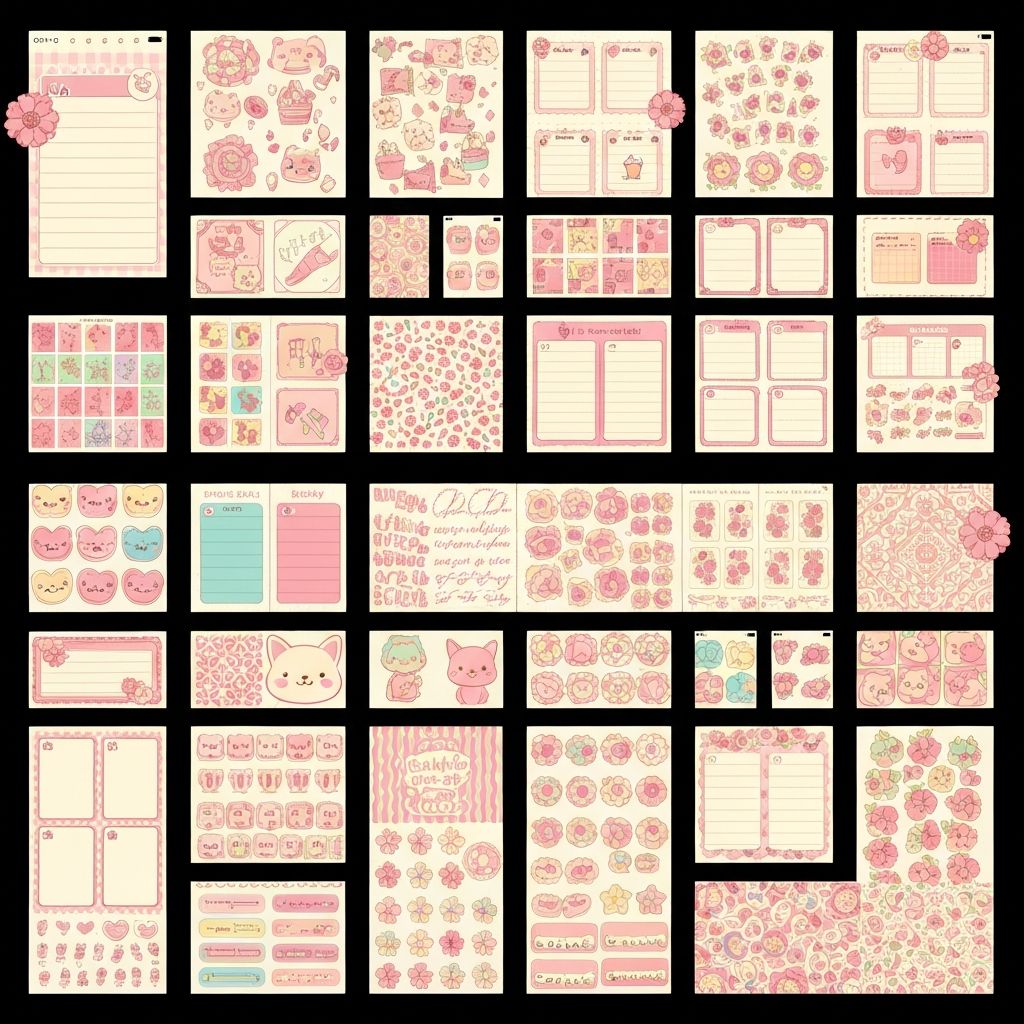
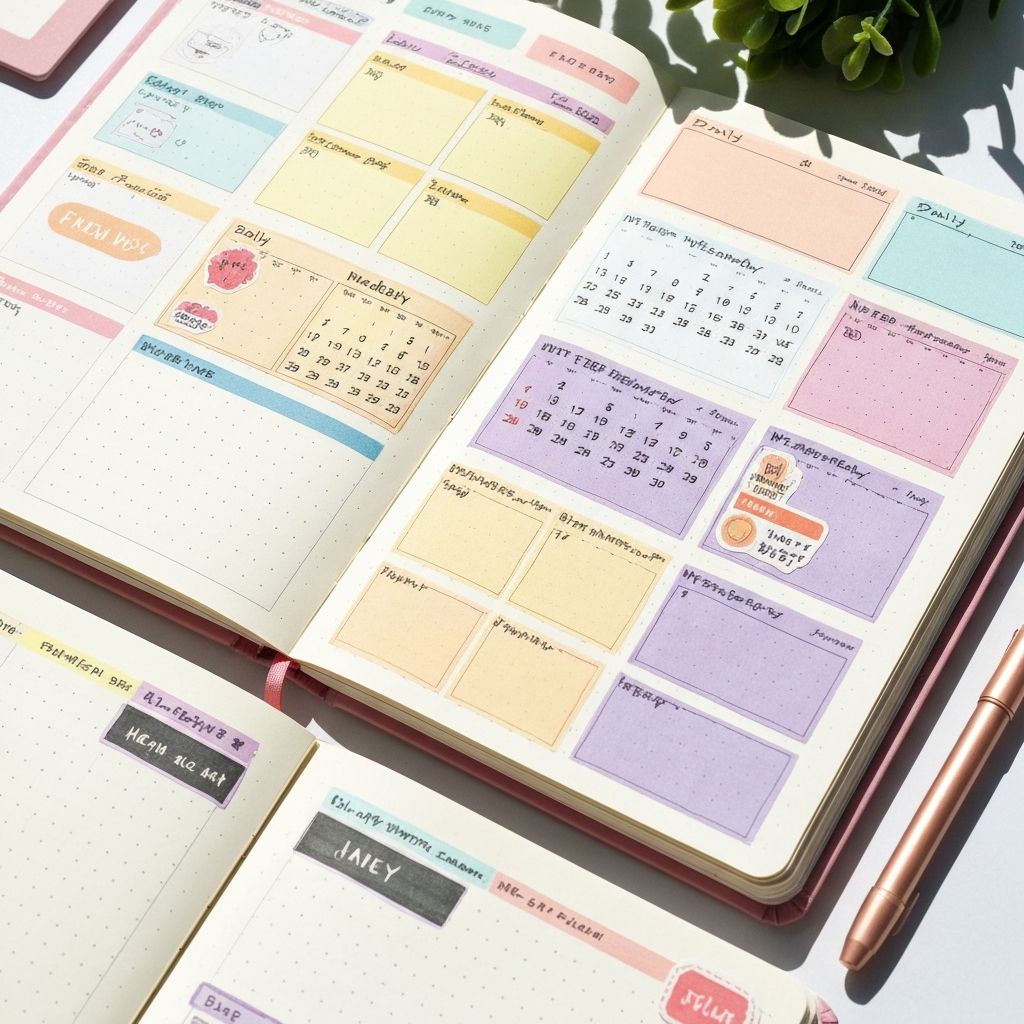
Why Custom Digital Stickers Transform Your Journal
Creating custom digital stickers for GoodNotes has never been easier. In 2025, AI-powered tools like StickerCraft have revolutionized how journal enthusiasts personalize their digital planners.
Digital stickers offer unique advantages:
- Unlimited copies without running out
- Perfect transparent backgrounds every time
- Custom designs that match your aesthetic
- No physical storage needed
Step 1: Choose Your Sticker Style
Before generating your sticker, consider your journal's overall aesthetic. Popular styles include:
Kawaii Style
Cute, rounded characters with soft colors. Perfect for adding personality to habit trackers and mood boards.
Minimal Style
Clean lines and simple shapes. Ideal for professional planners and goal-setting pages.
Watercolor Style
Artistic, flowing designs with soft color transitions. Great for creative journals and art planning.
Step 2: Write an Effective Prompt
The key to getting perfect stickers is writing clear, descriptive prompts. Here's a formula that works:
[Subject] + [Style] + [Color] + [Mood]
Examples:
- "Cute cat reading a book, kawaii style, pastel pink, cozy"
- "Coffee cup with steam, minimal line art, brown tones, relaxing"
- "Sunflower bouquet, watercolor painting, yellow and green, cheerful"
Step 3: Generate and Download
Using StickerCraft AI:
- Enter your prompt in the text box
- Select your preferred style (Kawaii, Minimal, etc.)
- Choose a color palette
- Click "Generate"
- Download as PNG with transparent background
Step 4: Import to GoodNotes
Method 1: Direct Import
- Save the PNG to your device
- Open GoodNotes and your notebook
- Tap the image icon
- Select your sticker file
- Resize and position as needed
Method 2: Create a Sticker Book
- Create a new notebook called "My Stickers"
- Import all your stickers to different pages
- Use the lasso tool to copy stickers to other notebooks
Pro Tips for Better Stickers
- Be specific - "happy golden retriever puppy" works better than just "dog"
- Mention transparency - Include "transparent background" in complex prompts
- Use style keywords - Terms like "flat design" or "hand-drawn" help define the look
- Consider size - Request "icon style" for small stickers, "detailed" for larger ones
Common Mistakes to Avoid
- Using too many colors (stick to 2-3 main colors)
- Overly complex prompts that confuse the AI
- Forgetting to specify transparent background
- Not matching sticker style to journal theme
Conclusion
Creating custom digital stickers for GoodNotes is now accessible to everyone, regardless of artistic ability. With AI tools like StickerCraft, you can generate unlimited unique stickers that perfectly match your journal aesthetic.
Ready to create your first sticker? Try StickerCraft free and make your journal uniquely yours.
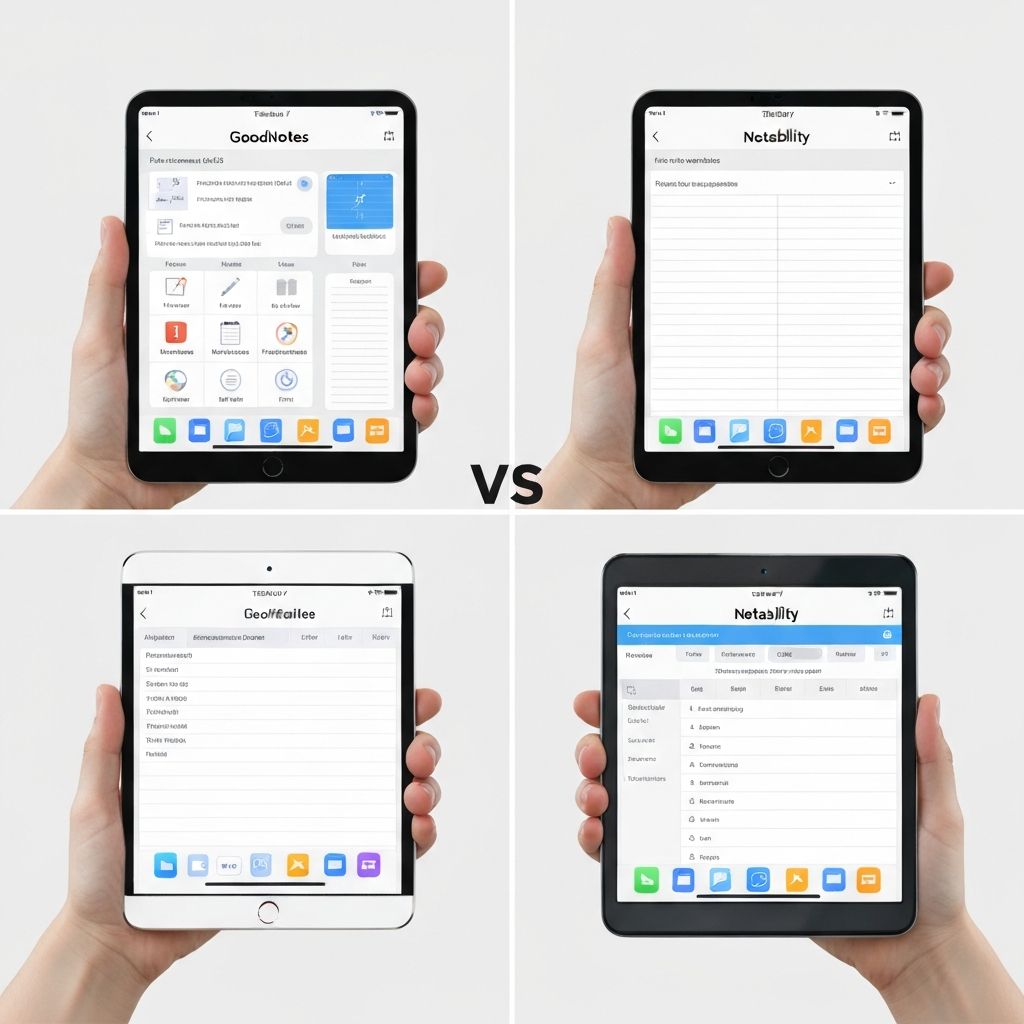
Related: Best Digital Planner Sticker Ideas | GoodNotes vs Notability Comparison
StickerCraft Team
The StickerCraft team is passionate about digital journaling and helping creators bring their sticker ideas to life with AI technology.
Related Posts
Related: 50 Digital Planner Sticker Ideas for Your Bullet Journal (2025 Inspiration) | Custom Stickers: Complete Guide to Creating Personalized Digital Stickers | Best Apps for Digital Planning in 2025: GoodNotes vs Notability vs Others